
Laser Cut Acrylic Strawberry Bag Tag
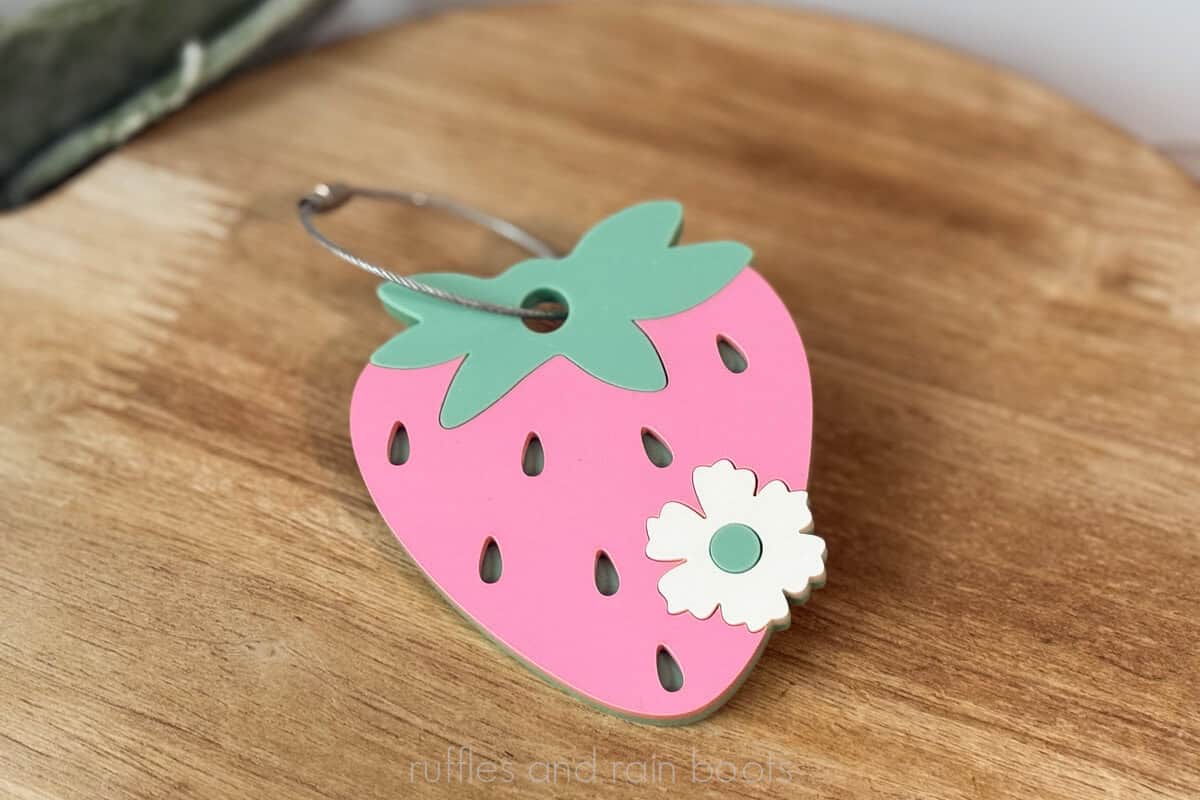
If you’re new to laser cutting acrylic, this bag tag project is a great way to start. It’s adorable and bag tags are always best sellers!
RELATED READING: How to Cut Mirror Acrylic
What You'll Find On This Page
DIY Acrylic Bag Tag
Here at Ruffles and Rain Boots, I love buying acrylic. I will spend quite a lot of time scrolling through my favorite suppliers and building projects based solely on their offerings.
Today, I’m using a beautiful, pastel palette as inspiration. This strawberry bag tag is a perfect project for a laser cutting beginner and the file is already set up for you, so there’s no anxiety to work through.
As an Amazon Associate, I could earn from qualifying purchases. There could be affiliate links within this article.
Materials Needed
You can use any acrylic (glitter would be fun) for this project. Below are the supplies and materials I used.
- strawberry bag tag bundle (includes SVG EPS PDF PNG DXF and XCS for xTool)
- CO2 Laser (I used a 55 watt xTool P2) and an inline fan
- 3mm (1/8th) sage green acrylic, matte
- 3mm (1/8th) pink acrylic, matte
- 3mm (1/8th) bone acrylic, matte
- 3M 467MP adhesive tape
- wire cable tag (these are TRIED AND TESTED)
Strawberry Acrylic Bag Tag Video Tutorial
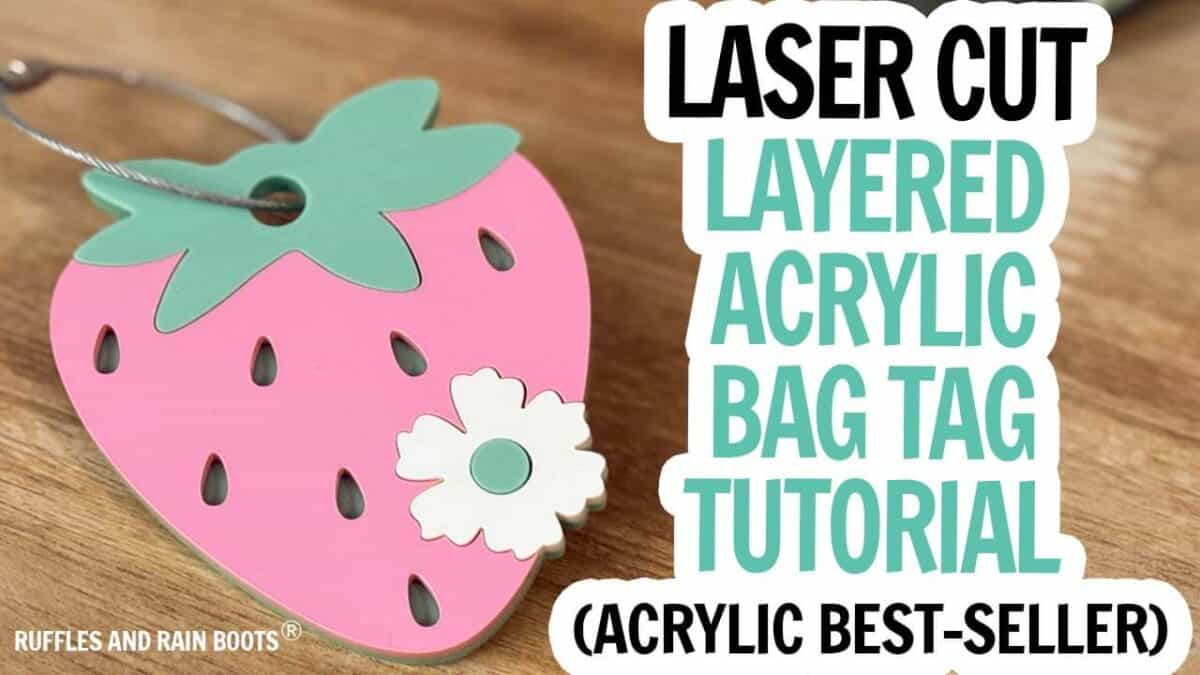
If you’re a visual learner, you can watch the acrylic bag tag tutorial video on how to set up, cut, and assemble this quick laser project for beginners. While you’re there, be sure to subscribe – we have a lot of fun on the channel.
RELATED READING: How to Make a Laser Cut Acrylic Phone Stand (Free File)
How to Set Up and Create the Strawberry Bag Tag
For those who are brand new, please note: you should watch the short video above to learn how to set up the acrylic prior to cutting. If you are using glue instead of the 3M, you can skip that step below.
If you’re using an xTool device, open the provided XCS file in xTool Studio. The first canvas will show the prepared file; the second canvas will have the original SVG so you can make any changes.
If you’re using another brand laser, use the SVG included in the zipped download.
Select all items on the first canvas and size to your liking. My bag tag is 3 1/4 inches tall but you can make yours smaller or larger.
Set up the file so that all pieces are cut. Set parameters for acrylic (P2 settings I used with 3M backing are 85 power, 10 speed, 1 pass).
Remove the paper masking on front and back of the acrylic. Apply 3M adhesive tape to the bone, pink, and part of the green acrylic (berry topper only). I measured the pieces in the software and then applied that amount to the acrylic.
Lay out all of the acrylic pieces into the machine and ensure they are level. I used a honeycomb and did not have to elevate at these settings, but if you have flashback with your machine, elevate the acrylic.
Auto measure the first piece of acrylic (I used pink). Take a close up camera image of that acrylic to ensure correct placement. Process the pink acrylic.
Auto measure the second piece of acrylic (bone). Take a close up camera image and place. Process the acrylic.
Finally, auto measure the green acrylic. Take a close up camera image and place the design. Process the acrylic.
Remove all pieces and clean, if needed.
To assemble, I like to align the largest piece first (pink), press for a few seconds, and then add the other pieces on. Protect the acrylic and clamp, if desired.
Add the wire tag and your acrylic strawberry bag tag is ready for use or for sale.
More Laser Project Ideas You Might Like
- Valentine’s Day Laser Project Ideas – There’s something for everyone…
- Make a Laser Cut Sun Catcher – Using Flex, I’ll show you how easy it is to make a sun catcher using wood and Flex material (diode or CO2).
- How to Laser Engrave a Gradient Leather Patch – Make amazing designs with inexpensive premade patches.
Please Save or Share This Fun Laser Project Idea
your shares are how this site grows and I am sincerely grateful. Please share this page to social media or save it to a laser crafts ideas pin board.
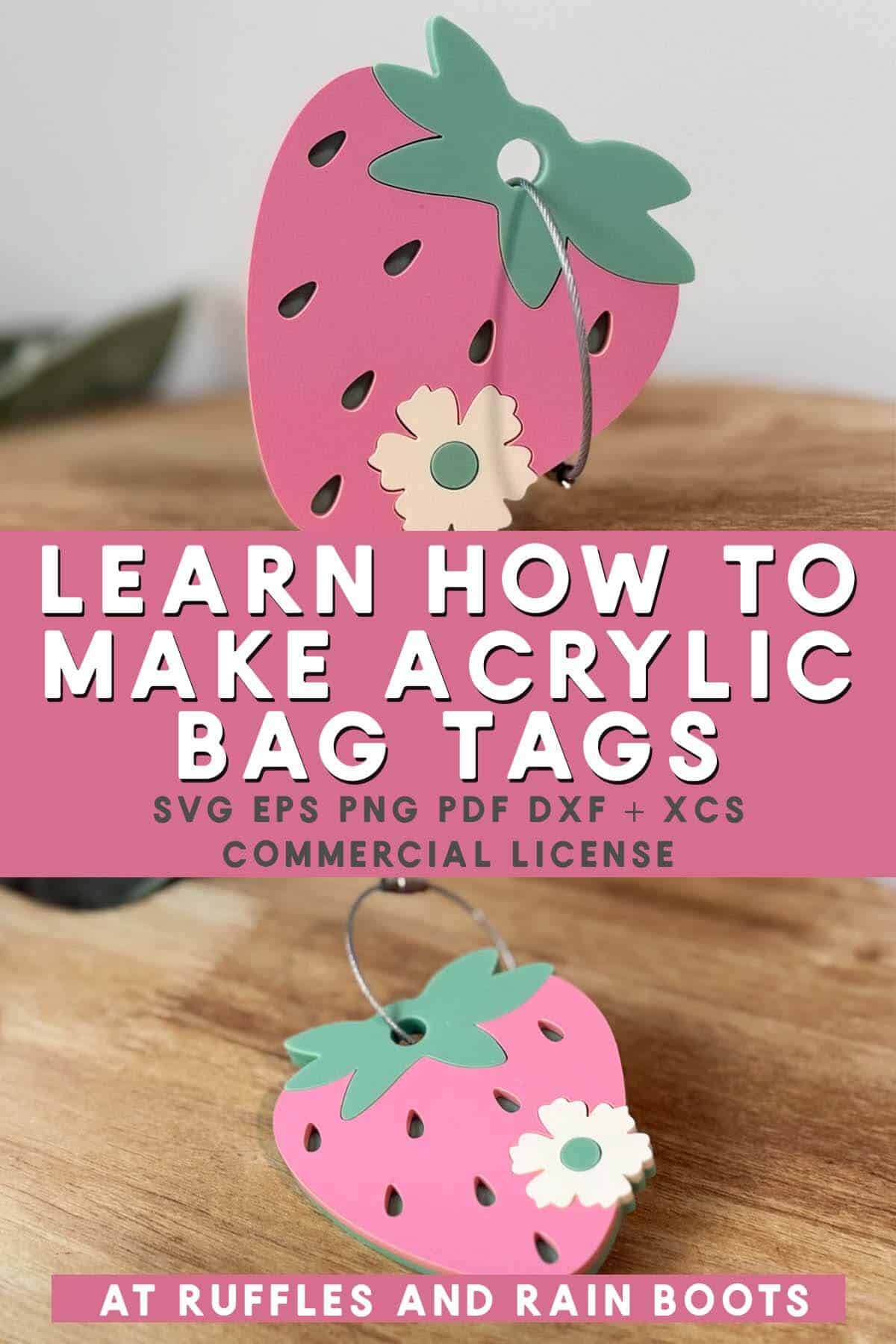
Laser Cut Strawberry Bag Tag Project

Create a beginner friendly acrylic strawberry bag tag usin the laser cut files and this easy tutorial.
Materials
- 3mm (1/8th) sage green acrylic, matte
- 3mm (1/8th) pink acrylic, matte
- 3mm (1/8th) bone acrylic, matte
- 3M 467MP adhesive tape (or glue)
- wire cable tag
Tools
- xTool P2
- xTool inline fan
Instructions
- If you're using an xTool device, open the provided XCS file in xTool Studio. The first canvas will show the prepared file; the second canvas will have the original SVG so you can make any changes.
- If you're using another brand laser, use the SVG included in the zipped download.
- Select all items on the first canvas and size to your liking. My bag tag is 3 1/4 inches tall but you can make yours smaller or larger.
- Set up the file so that all pieces are cut. Set parameters for acrylic (P2 settings I used with 3M backing are 85 power, 10 speed, 1 pass).
- Remove the paper masking on front and back of the acrylic. Apply 3M adhesive tape to the bone, pink, and part of the green acrylic (berry topper only). I measured the pieces in the software and then applied that amount to the acrylic.
- Lay out all of the acrylic pieces into the machine and ensure they are level. I used a honeycomb and did not have to elevate at these settings, but if you have flashback with your machine, elevate the acrylic.
- Auto measure the first piece of acrylic (I used pink). Take a close up camera image of that acrylic to ensure correct placement. Turn on air extraction and process the pink acrylic.
- Auto measure the second piece of acrylic (bone). Take a close up camera image and place. Process the acrylic.
- Finally, auto measure the green acrylic. Take a close up camera image and place the design. Process the acrylic.
- Remove all pieces and clean, if needed.
- To assemble, I like to align the largest piece first (pink), press for a few seconds, and then add the other pieces on. Protect the acrylic and clamp, if desired.
- Add the wire tag and your acrylic strawberry bag tag is ready for use or for sale.
Notes
For those who are brand new, please note: you should watch the short video above to learn how to set up the acrylic prior to cutting. If you are using glue instead of the 3M, you can skip that step.
Meet the Creator
Hi there, I’m Sarah Nenni-Daher. I’m a crafty gal and always have at least 14 projects going at once. I am a crafter, designer, DIYer, and pattern maker. I share my creations here and in the Ruffles and Rain Boots® Shop.
Here at Ruffles and Rain Boots®, you’ll find DIY gnomes, crafts, gifts, cupcakes, laser crafts, and so much more. I love sharing video tutorials over on YouTube and chatting with other crafters in my Facebook groups. We’d love to have you!